How to Turn Photos and Phone Scans Into One PDF
· 1 min read
Took photos of contract pages, receipts or homework, but need to send one PDF? Build it from your photos in a minute.
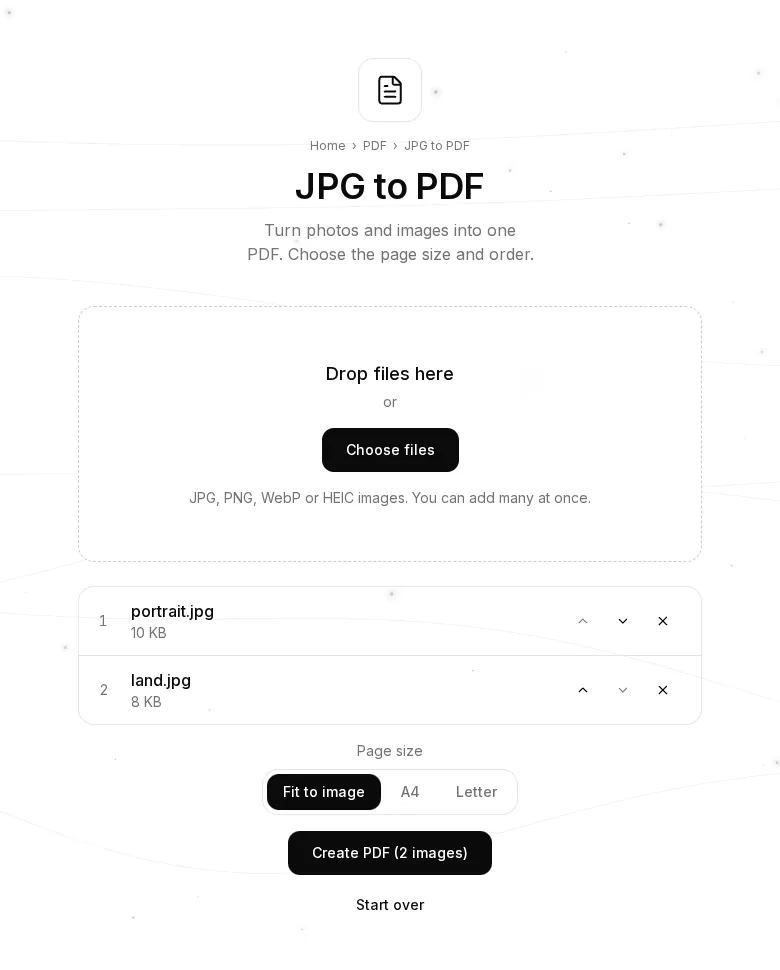
Step 1. Add the images
Open JPG to PDF and drag photos into the box. You can add many at once: JPG, PNG, WebP and HEIC from an iPhone.
Step 2. Put them in order
Move images up and down with the arrows — pages follow this order. The cross removes an image.
Step 3. Choose the page size
- Fit to image — each page is exactly the size of its photo.
- A4 or Letter — if the document will be printed.
Step 4. Create the PDF
Press “Create PDF” and download the file.
Tips
- Photograph pages from straight above, in good light, to avoid shadows and skew.
- If the PDF is heavy, shrink it with Compress PDF.
- Need to add these pages to another document? Use Merge PDF.
- The reverse — PDF pages as images — is PDF to JPG.
- Your images are never uploaded: the PDF is made in your browser.