How to Compress a Photo to 100 KB for Forms and Uploads
· 1 min read
Many sites and application forms only accept photos up to 100–500 KB: visa and government portals, job applications, school forms, listings. A phone photo weighs 2–5 MB, so the form rejects it. Here's how to shrink it to the right size in seconds.
Step 1. Pick the size
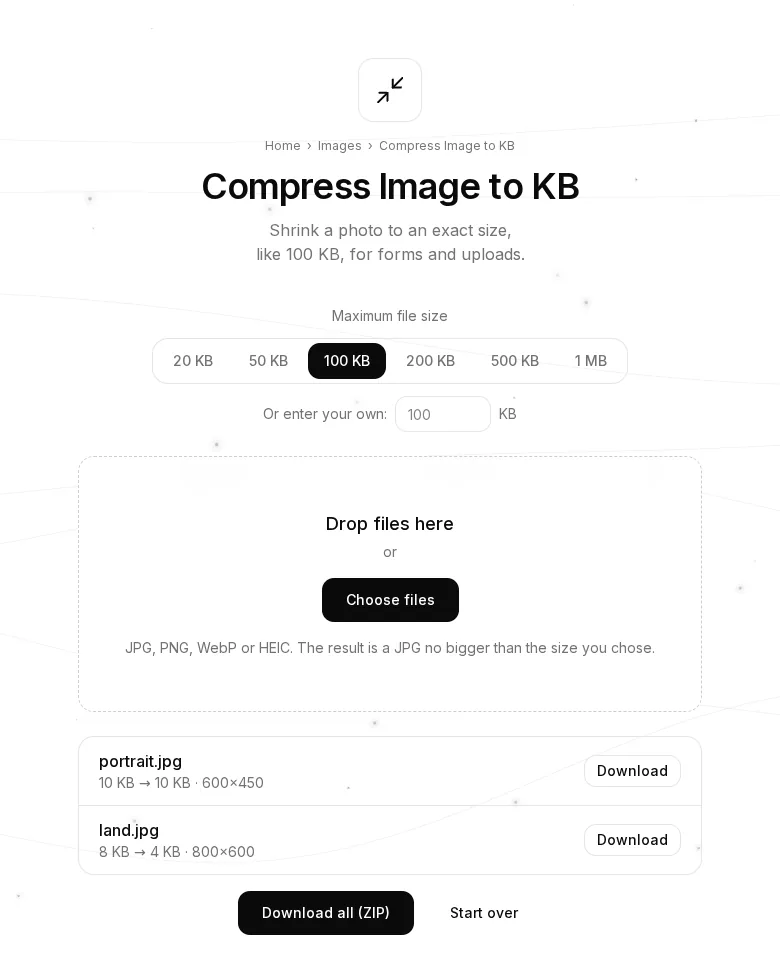
Open Compress Image to KB. At the top, pick a preset — 20, 50, 100, 200, 500 KB or 1 MB — or type your own number below. Use exactly what the form asks for.
Step 2. Add your photos
Drag photos into the box or press “Choose files”. You can add several at once: JPG, PNG, WebP and even HEIC from an iPhone. Each photo is compressed right away, and you can see its size before and after.
Step 3. Download
Download photos one by one, or all together as a ZIP.
How it works
The tool tries different JPG quality levels and picks the best one that fits under your limit. If the photo is still too big, it's also scaled down a little. So you always get the sharpest photo for the size you chose.
Tips
- 100–200 KB is enough for most forms: on screen it looks almost the same as the original.
- Need a specific pixel size or PNG? Use the Image Converter.
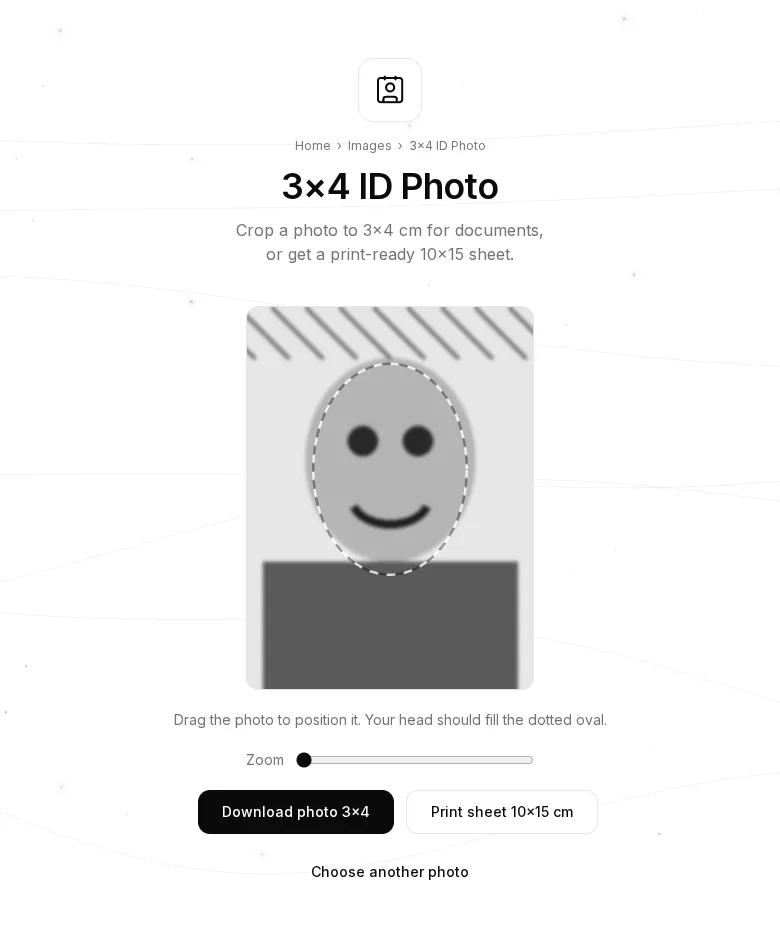
- Making a passport-style photo? Try 3×4 ID Photo.
- Your photos are never uploaded: everything happens in your browser.