How to Sign a PDF Online Without Printing or Scanning
· 1 min read
Got a contract or form to sign and send back? You don't have to print it, sign with a pen and scan it — you can sign the PDF itself.
Step 1. Open the document
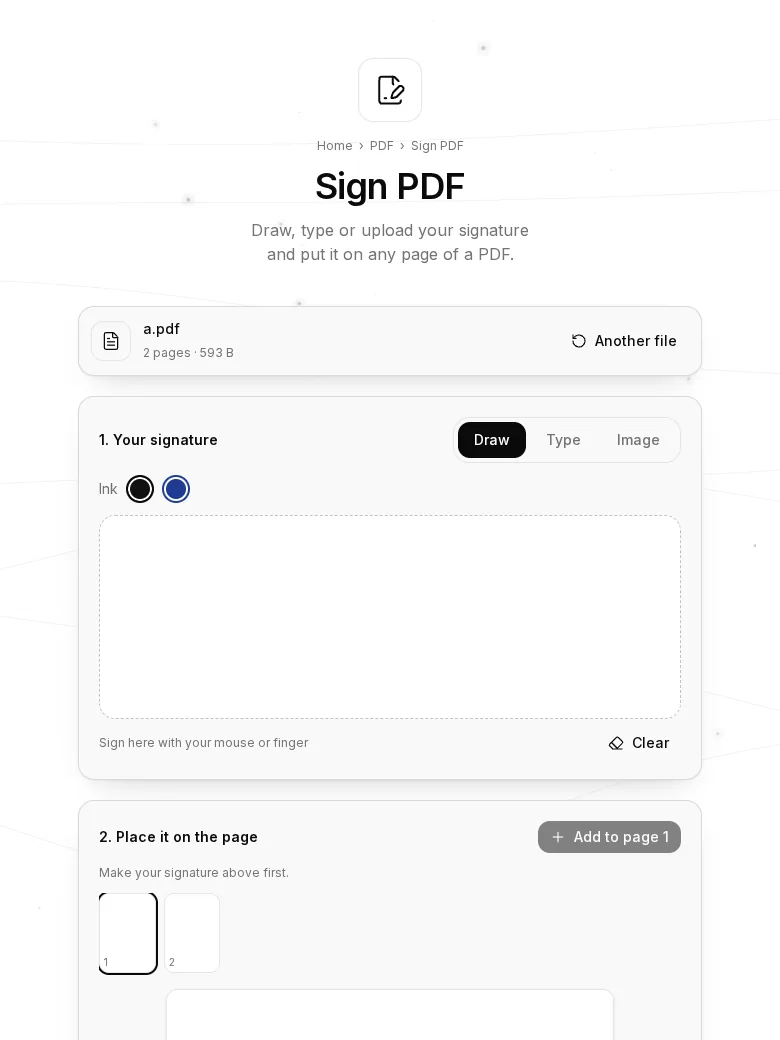
Open Sign PDF and choose or drop your PDF.
Step 2. Make your signature
There are three ways:
- Draw it with the mouse, your finger or a stylus. Pick black or blue ink.
- Type your name — it becomes a signature in a handwriting font.
- Image — upload a photo of your signature on white paper; the white background turns transparent by itself.
Step 3. Place it on the page
Pick a page in the thumbnail strip and press “Add to page”. Drag the signature into place and pull its corner to resize it. You can add it to as many pages as you like.
Step 4. Save
Press “Save” to download the signed PDF.
Good to know
This is a picture of your signature on the document — the same as signing a printout and scanning it. That's enough for many everyday documents, but it is not a qualified electronic signature.
Tips
- For a crisp signature image, sign with a thick pen on white paper and photograph it in good light.
- Your document and signature are never uploaded: everything happens in your browser.