How to Make a QR Code for a Link, Menu or Business Card
· 1 min read
QR codes are everywhere: restaurant menus, Instagram links on business cards, payments, flyers, review links. You can make one for free in 10 seconds — and it will work forever.
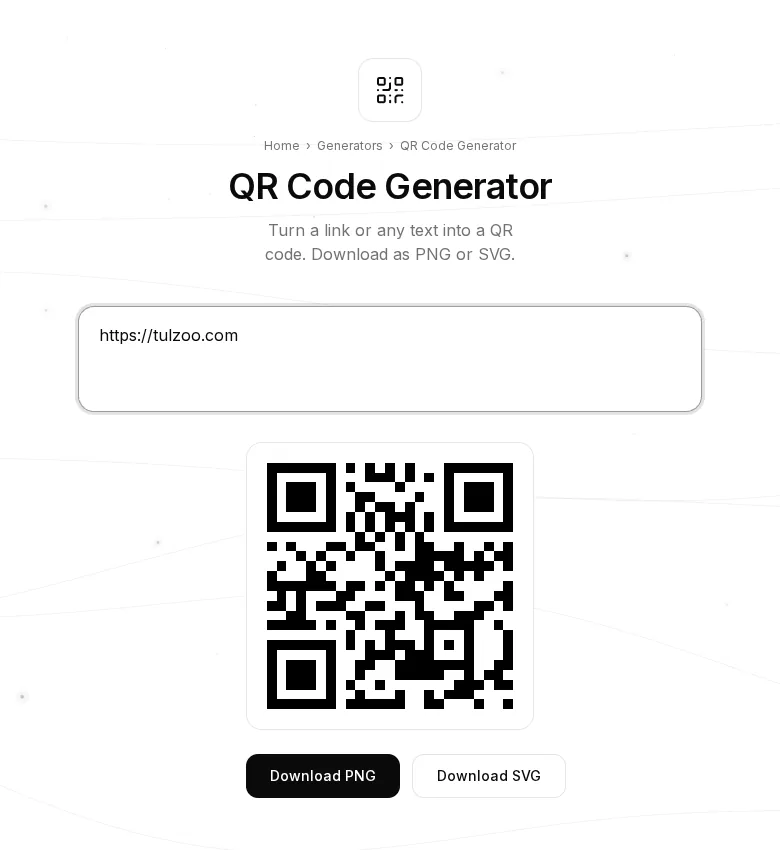
Step 1. Paste a link or text
Open the QR Code Generator and paste a link to a website, social profile or menu — or type any text.
Step 2. Check the code
The QR code appears instantly as you type. Point your phone camera at it and make sure it opens the right thing.
Step 3. Download
- PNG — for messengers, documents, websites and social media.
- SVG — for print: stays sharp at any size, from a business card to a banner.
Will the code keep working?
Yes. The link or text is stored inside the code itself, so it doesn't depend on our site and never expires. Many services make “dynamic” codes that stop working without a subscription — not here.
Tips
- In print, make the code at least 2×2 cm, bigger on posters: the farther away people are, the larger it needs to be.
- Keep a white margin around the code — phones scan it better.
- Long links make the code denser; use short ones when you can.
- Want a QR code you can 3D print or turn into a keychain? Try the 3D QR Code.
- The codes are yours to use anywhere, including commercially, with no sign-up and no watermark.